> For the complete documentation index, see [llms.txt](https://docs.whalesync.com/llms.txt). Markdown versions of documentation pages are available by appending `.md` to page URLs; this page is available as [Markdown](https://docs.whalesync.com/connectors/wordpress.org/authorize-wordpress.org.md).
# Authorize WordPress.org
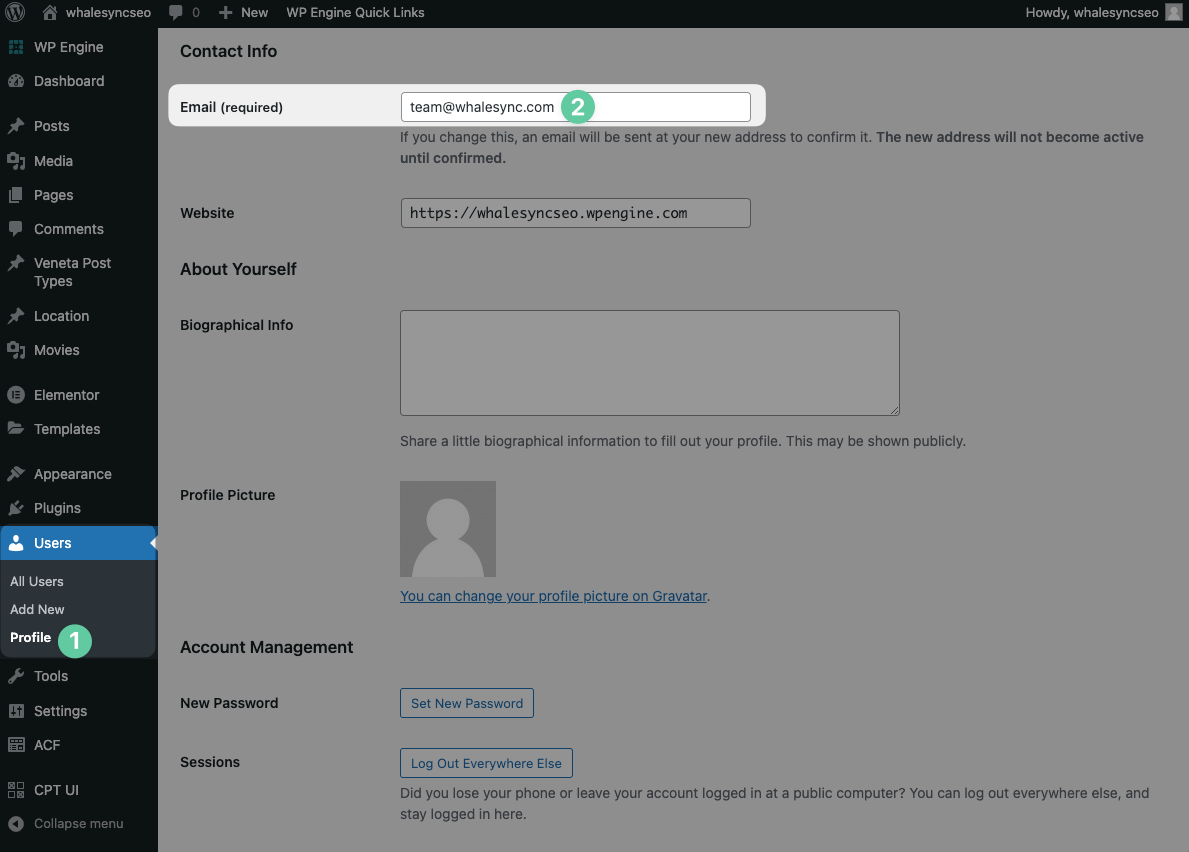
### How to get your user email
1. Click Users > Profile
2. Scroll down to `Email`
3. Copy your email address
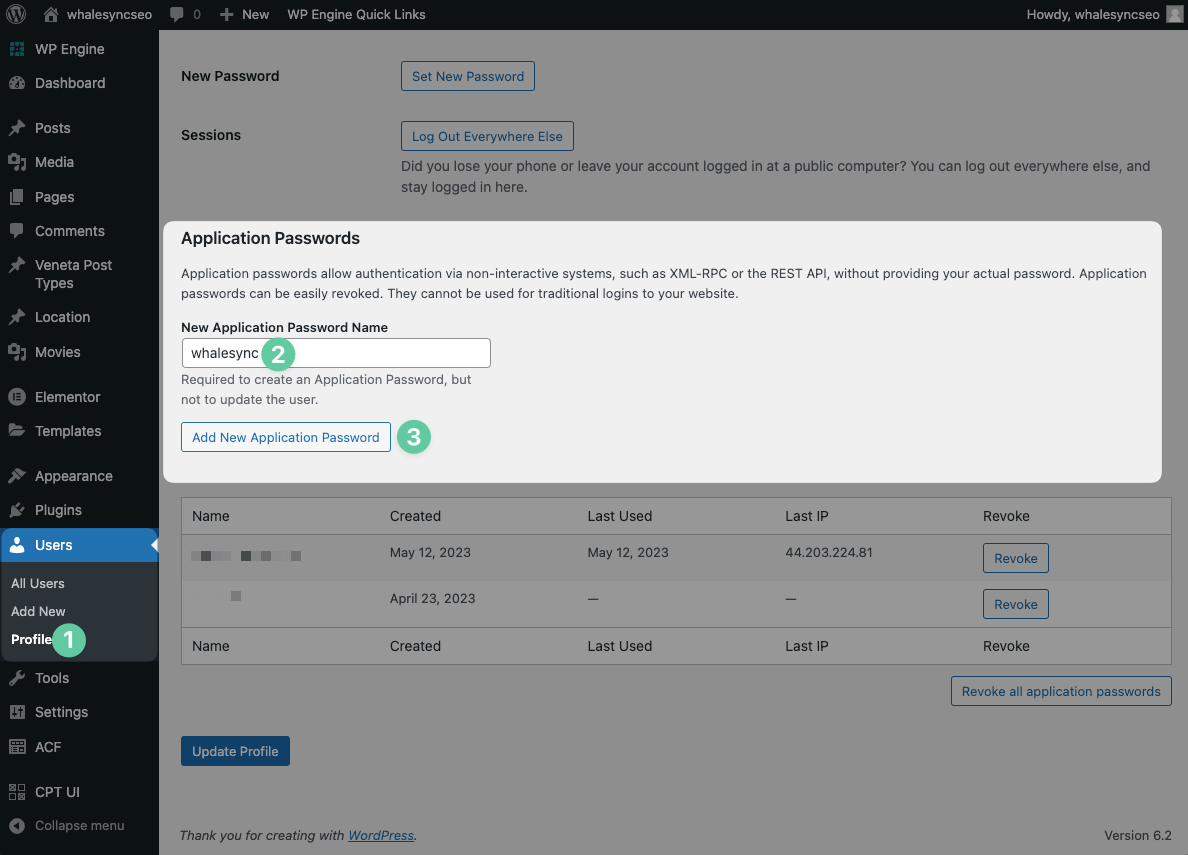
### How to get your password
1. Click Users > Profile
2. Scroll down to `Application Passwords`
3. Enter an application password name
4. Press "Add New Application Password"
5. Copy your password
### Which user role do I need?
The user you connect with needs at least the **Editor** role. When you connect, Whalesync checks that the user can edit posts, so an Author, Contributor, or Subscriber account will fail with a "not allowed to edit" error even when the email and application password are correct.
### How to find your domain name
Simply enter the domain of your WordPress site. For example:
****
Some WordPress hosts don't let Whalesync reach your data through your site's main domain. In that case, enter the domain where your WordPress dashboard lives—but **without** the `/wp-admin` path. For example, if your dashboard is at `https://blog.example.com/wp-admin`, enter `https://blog.example.com` (not your public homepage at `https://example.com`).
### "You are not allowed to edit posts"
This error means your login worked but the user does not have permission to edit content. Two things to check:
1. Give the connecting user at least the **Editor** role.
2. Make sure the WordPress URL you entered is your dashboard site URL. It can differ from your public site URL.