Reconnecting a sync
Fix a Broken connection in Whalesync by reconnecting the app from the sync's Settings tab, plus common causes and what to try if reconnecting doesn't work.
When Whalesync loses authorization to one of your connected apps, syncing pauses for any sync using that connection. To resume, you'll need to reconnect the app — usually a one-click action.
How to know a connection is broken
Section titled “How to know a connection is broken”Whalesync surfaces broken connections in three places:
- Email — you'll receive a "Reconnect [app]" email listing each affected sync.
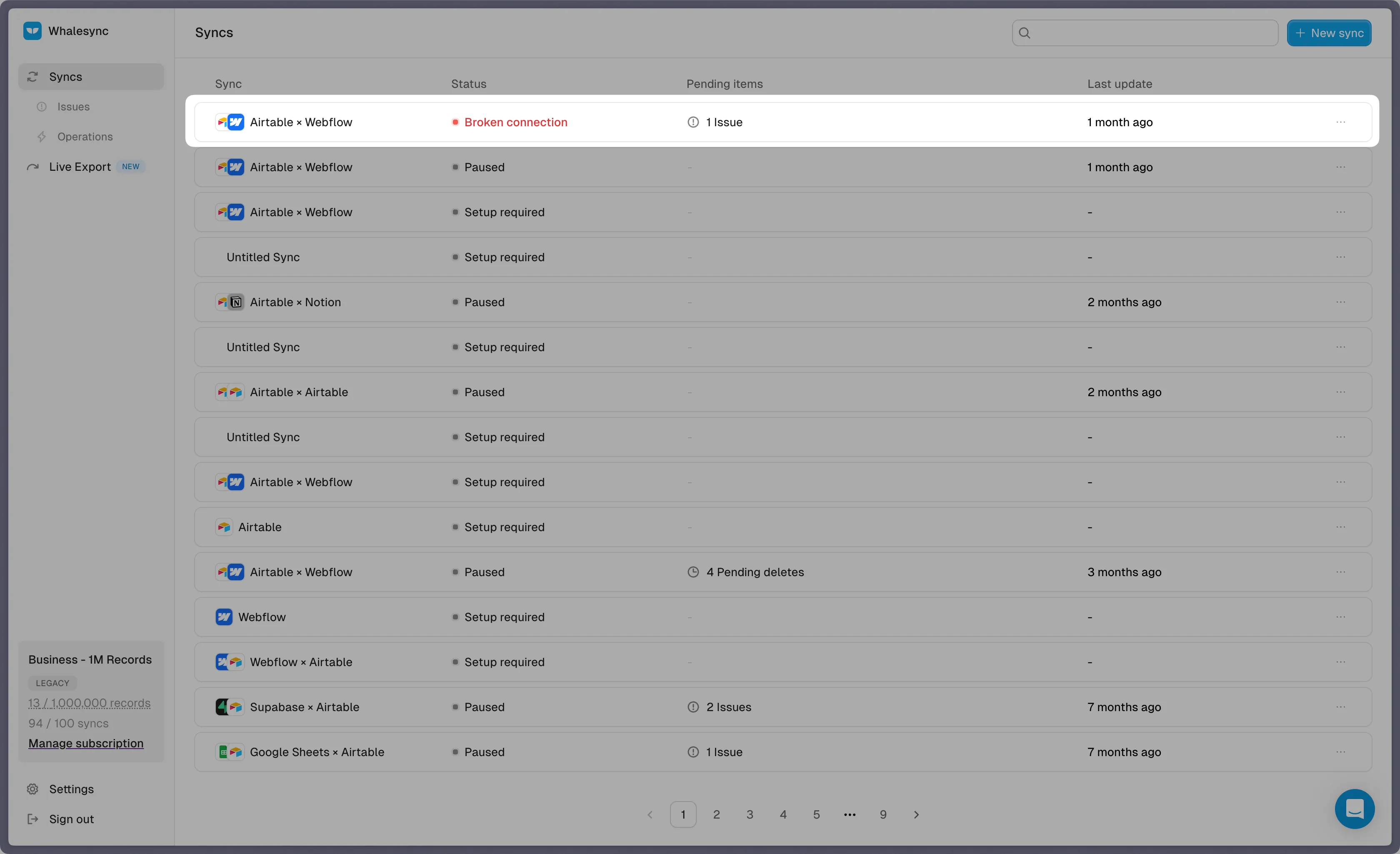
- Dashboard — affected syncs show a red Broken connection pill on the sync list.
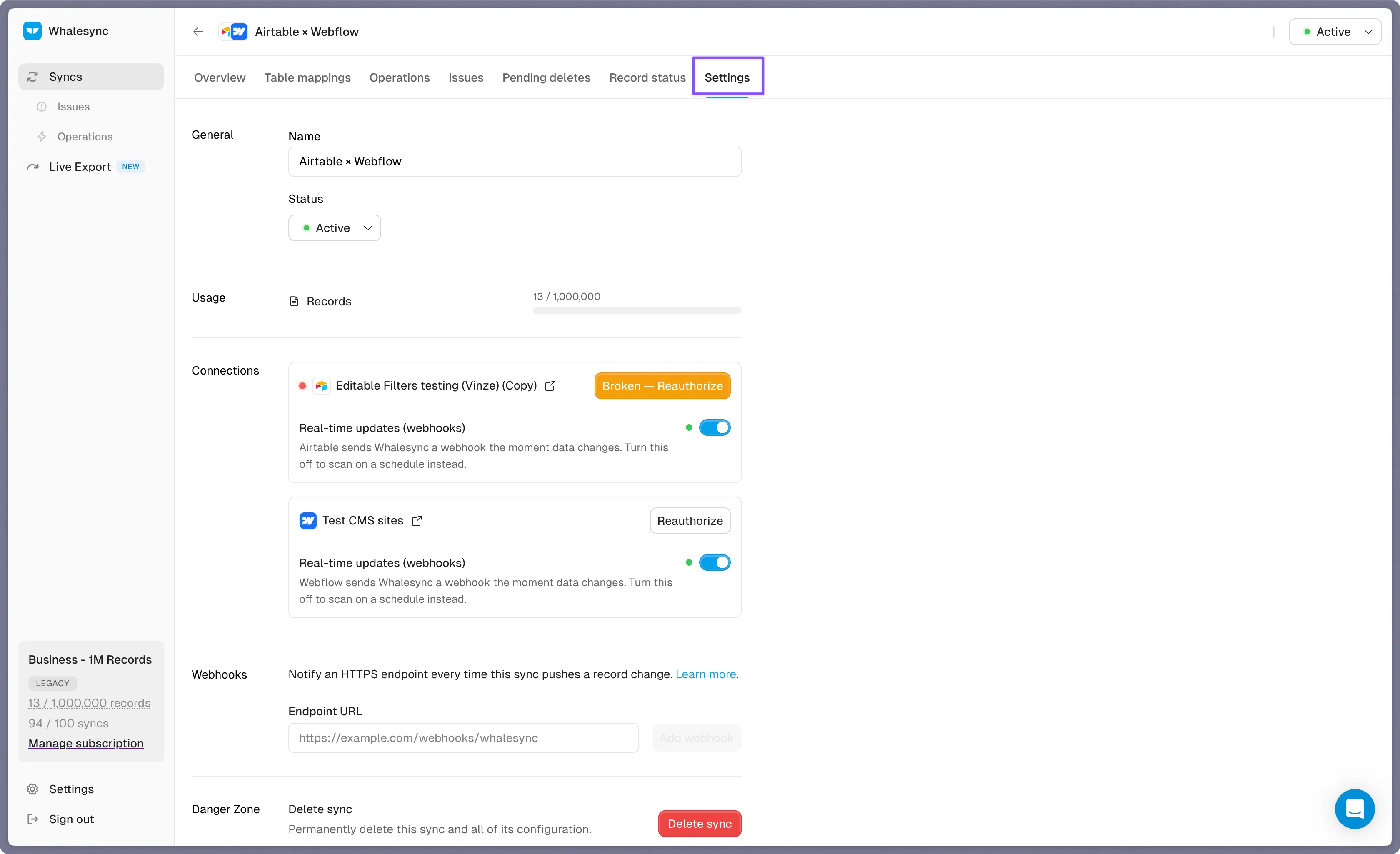
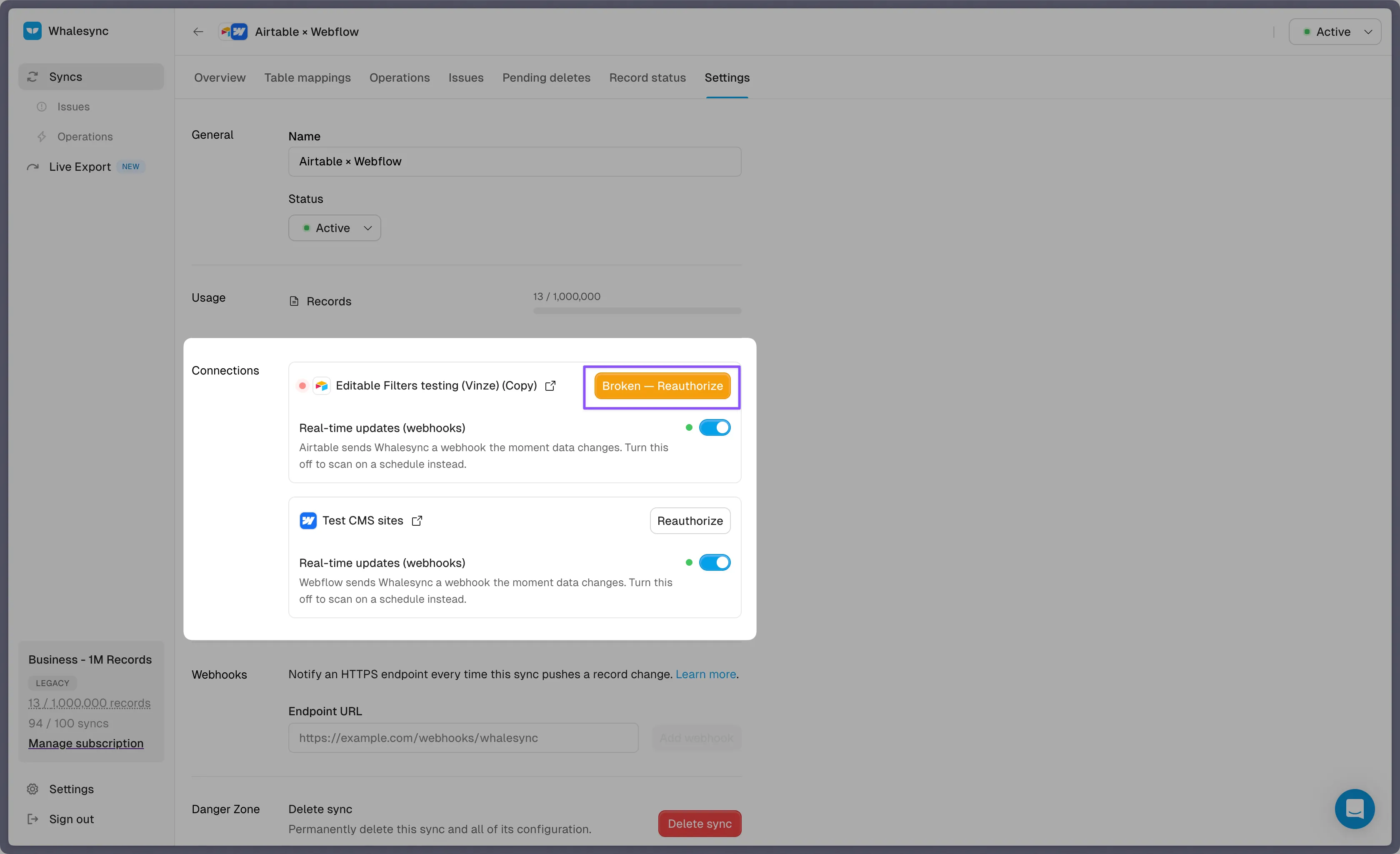
- Sync settings — open the sync and you'll see a warning on the connection card.
While a connection is broken, Whalesync stops polling for new changes and pauses any pending pushes. No records are modified or deleted during this time.
How to reconnect
Section titled “How to reconnect”-
Open the affected sync from your dashboard
-
Go to the Settings tab
-
Find the connection card for the broken app and click Reconnect
-
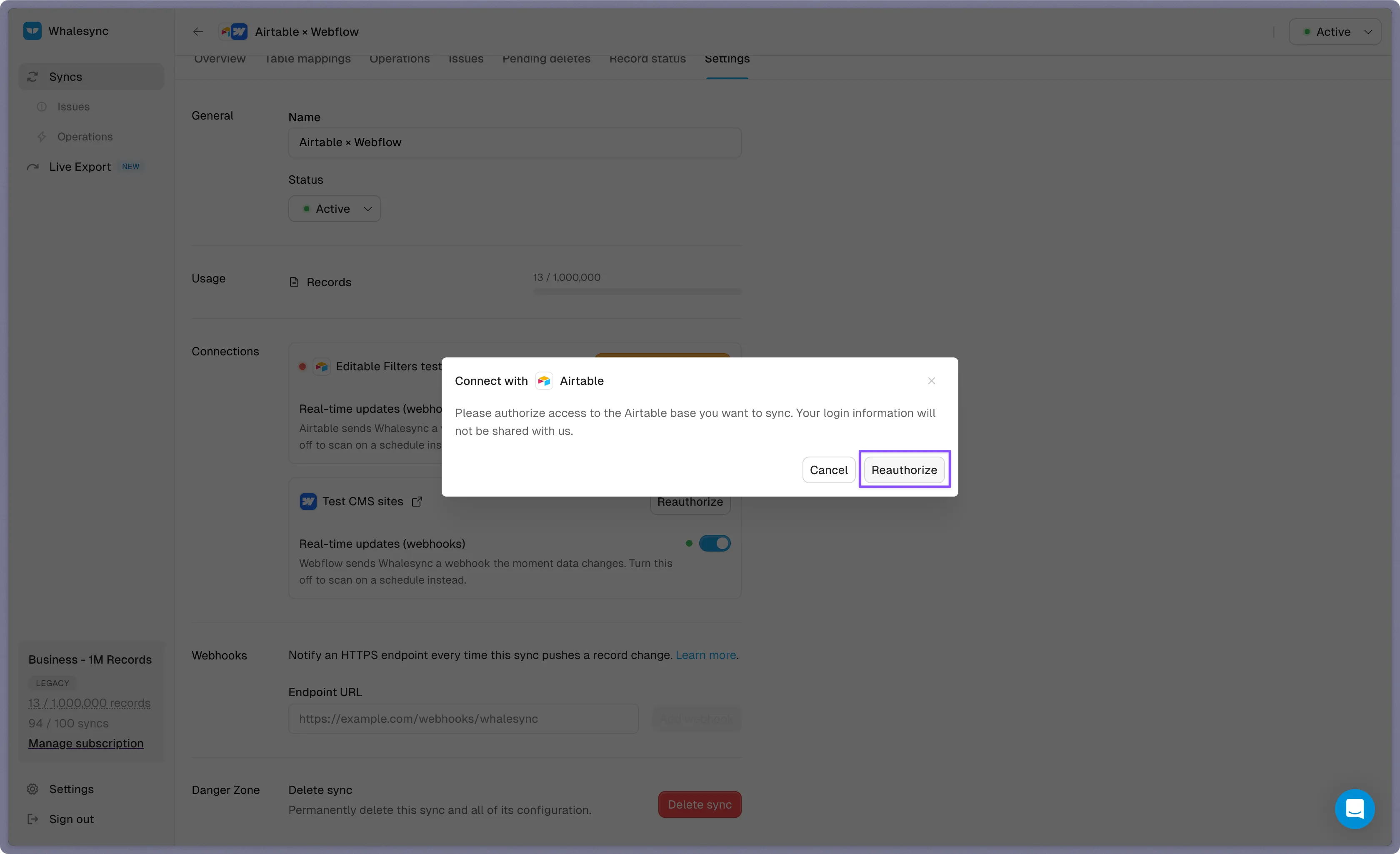
You'll be redirected to the app's authorization flow — sign in and approve access
Once reconnected, Whalesync resumes syncing automatically. Any record changes that happened while the connection was broken will be picked up on the next sync cycle.
If multiple syncs share the same broken connection, reconnecting once fixes them all.
Why connections break
Section titled “Why connections break”The most common causes:
- Token expiry — some apps issue short-lived auth tokens, and Whalesync's automatic refresh has failed enough times that we've stopped retrying.
- Revoked access — someone removed Whalesync from the connected app's "Connected apps" or "API access" settings.
- Password or seat change — for credential-based connections (e.g. Postgres), a password change or removed account seat will break the connection.
- Permission change — if a required scope or role was removed, data-plane calls fail even if the auth token itself is still valid.
If reconnecting doesn't work
Section titled “If reconnecting doesn't work”Try the following:
- Sign in as the same user account that originally authorized Whalesync.
- In the connected app, confirm that user has the required permissions for the tables you're syncing.
- For credential-based connections, verify the credentials still work outside Whalesync.
- If you continue to see the broken-connection state after a successful reauth, email us at support@whalesync.com with the sync URL.