ChatGPT directory migration
Whalesync is leaving ChatGPT's app directory. Add it as a custom MCP server to keep using Whalesync in ChatGPT.
Whalesync is leaving ChatGPT's app directory. If you connected ChatGPT by clicking Connect on Whalesync's page in the directory, that app is being retired and can stop working at any time. To keep using Whalesync in ChatGPT, add it again as a custom MCP server. It takes a few minutes.
Nothing in your Whalesync account changes. Your syncs and Live Exports keep running the whole time, because they belong to your Whalesync account and not to the ChatGPT connection.
Why Whalesync is leaving the directory
Section titled “Why Whalesync is leaving the directory”ChatGPT's directory reviews every tool an app offers and places limits on what those tools can do. As a result, the directory app is missing the tools to use an increasing number of Whalesync features.
Step 1: Check whether you're affected, and uninstall
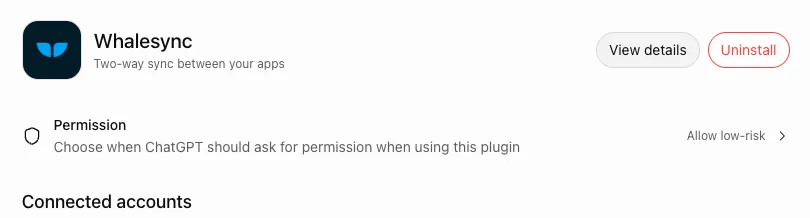
Section titled “Step 1: Check whether you're affected, and uninstall”Open Whalesync's page in your ChatGPT settings. This will show if you have the directory app installed.
If you see an Uninstall button, you're affected. Click Uninstall, then carry on with step 2.
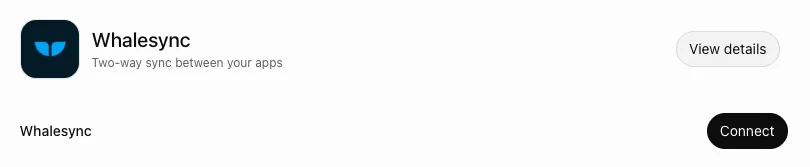
If you see a Connect button, you don't have the directory app. There is nothing to do. Don't click Connect. You can close the window. You're done.
Step 2: Add Whalesync as a custom MCP server
Section titled “Step 2: Add Whalesync as a custom MCP server”- Open Plugins in ChatGPT's sidebar.
- Click +, then Add custom MCP server.
- Enter
Whalesyncas the name. Under Connection, enterhttps://api.whalesync.com/mcp. - Under Authentication, choose OAuth. There is no client ID or secret to enter.
- Read the warning, check I understand and want to continue, and click Create as a plugin.
If Add custom MCP server is missing, your ChatGPT plan or your workspace's admin doesn't allow custom MCP servers. See Client setup.
Step 3: Approve the connection
Section titled “Step 3: Approve the connection”ChatGPT opens Whalesync's sign-in. Sign in with the same Whalesync account as before, review the access ChatGPT asks for, and click Connect.
Settings → MCP still lists one ChatGPT connection. Approving again updates it; there is no old connection to clean up.
Step 4: Check that it works
Section titled “Step 4: Check that it works”Start a new chat, type @, pick Whalesync, and ask:
List my Whalesync syncs.
Chats from before the switch may still point at the removed app, so start a new one.
Troubleshooting
Section titled “Troubleshooting”- ChatGPT can read your syncs but can't create or change anything: some ChatGPT plans only allow a custom MCP server's read tools. Check OpenAI's guide for your plan: Connecting custom MCP servers in ChatGPT. Also check the connection's scope under Settings → MCP: a
readconnection can't make changes. To change the scope, disconnect it there and connect again from ChatGPT. - A tool you expect is missing: open Whalesync under Plugins in ChatGPT and click Refresh.
- You can't uninstall the directory app: in a managed workspace, an admin removes it under Workspace settings.
- The link in step 1 doesn't open: the listing has already been removed. If Whalesync still appears under Settings → Plugins in ChatGPT, uninstall it there. Then go to step 2.
- Something else: email support@whalesync.com.