Store record IDs on both sides
Recommended best practice: map each app's built-in Record ID field into a text field on the other side, for stable matching and faster debugging.
Every table Whalesync reads has a built-in, read-only field named "<App> Record ID", such as "Airtable Record ID" or "Webflow Record ID". It holds the app's native ID for each record. We recommend mapping that field into a plain text field on the opposite side of your sync, in both directions, so every record carries a durable pointer to its counterpart.
Why store record IDs
Section titled “Why store record IDs”Stable join key. Native record IDs never change. Names, emails, and slugs get edited, and matching on them breaks the moment someone renames a record. An ID keeps pointing at the same record for its whole life.
Painless re-matching. If a sync is ever paused, rebuilt, or recreated, the stored IDs let you re-match existing records exactly instead of matching by name or email. See record-matching.md.
Faster debugging. When a record looks wrong, you can jump straight from it to its twin in the other app without opening Whalesync.
Downstream work. Deep links into the other app, external API calls, and reconciliation audits all become possible without querying Whalesync.
How to set it up
Section titled “How to set it up”1. Find the ID field
Section titled “1. Find the ID field”In the field mapper, each table has an "<App> Record ID" field in its field list. The list is alphabetical, so look under the app's name. The field is tagged read-only. It is not a field that exists in the app itself. Whalesync fills it in for you.
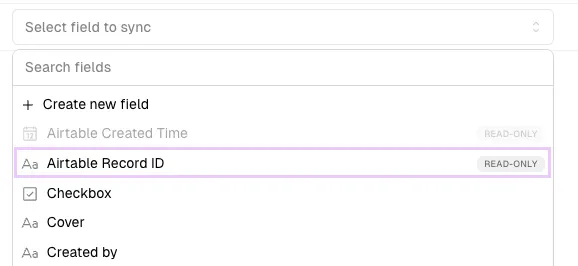
If you want to see the ID inside the app itself, see how-to-get-record-ids.md. You do not need to do this to set up the mapping.
2. Create the receiving fields
Section titled “2. Create the receiving fields”Add a plain text field on each side to hold the other app's ID. Name it after the app whose ID it stores, for example "Airtable ID" in Webflow and "Webflow ID" in Airtable.
You can create this field from the mapper instead of in the app. Choose Create new field at the top of the field picker. This opens the Copy fields dialog. Tick the Record ID field and Whalesync adds a matching text field on the other side for you.
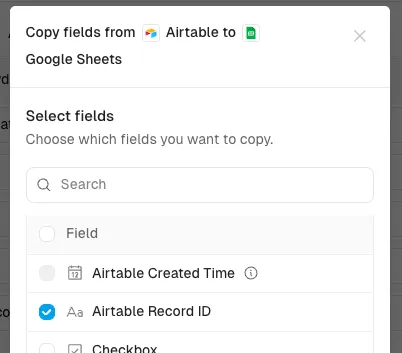
3. Map them
Section titled “3. Map them”Map App A's "App A Record ID" to App B's text field, and App B's "App B Record ID" to App A's text field. For an Airtable and Webflow sync, that is:
- "Airtable Record ID" to "Airtable ID" in Webflow
- "Webflow Record ID" to "Webflow ID" in Airtable
Each mapping is one-way, from the app that owns the ID. The mapper sets this direction automatically because the Record ID field is read-only. See the read-only fields note on two-way-sync.md.

Can I edit the text field that holds the other app's ID?
Section titled “Can I edit the text field that holds the other app's ID?”No. It is only synced one-way and should be treated as read-only in the app.
Is it safe to add these mappings to an existing sync?
Section titled “Is it safe to add these mappings to an existing sync?”Yes. Whalesync back-fills the ID for every record that is already synced. You do not need a separate one-way sync or a manual population step.
What about records that exist on only one side?
Section titled “What about records that exist on only one side?”Their ID field is filled when Whalesync creates the counterpart record in the other app.