# Syncing images

{% hint style="warning" %}
**Archived:** This connector is no longer offered by Whalesync. Existing syncs will continue to run, but future improvements and support will be limited. See [Previous Connectors](https://docs.whalesync.com/previous-connectors) for more details.
{% endhint %}

## Syncing images

{% hint style="info" %}
We suggest using our [Shopify Template Pack](https://www.whalesync.com/template-packs/shopify) which has the correct tables/fields pre-created
{% endhint %}

**TL;DR**

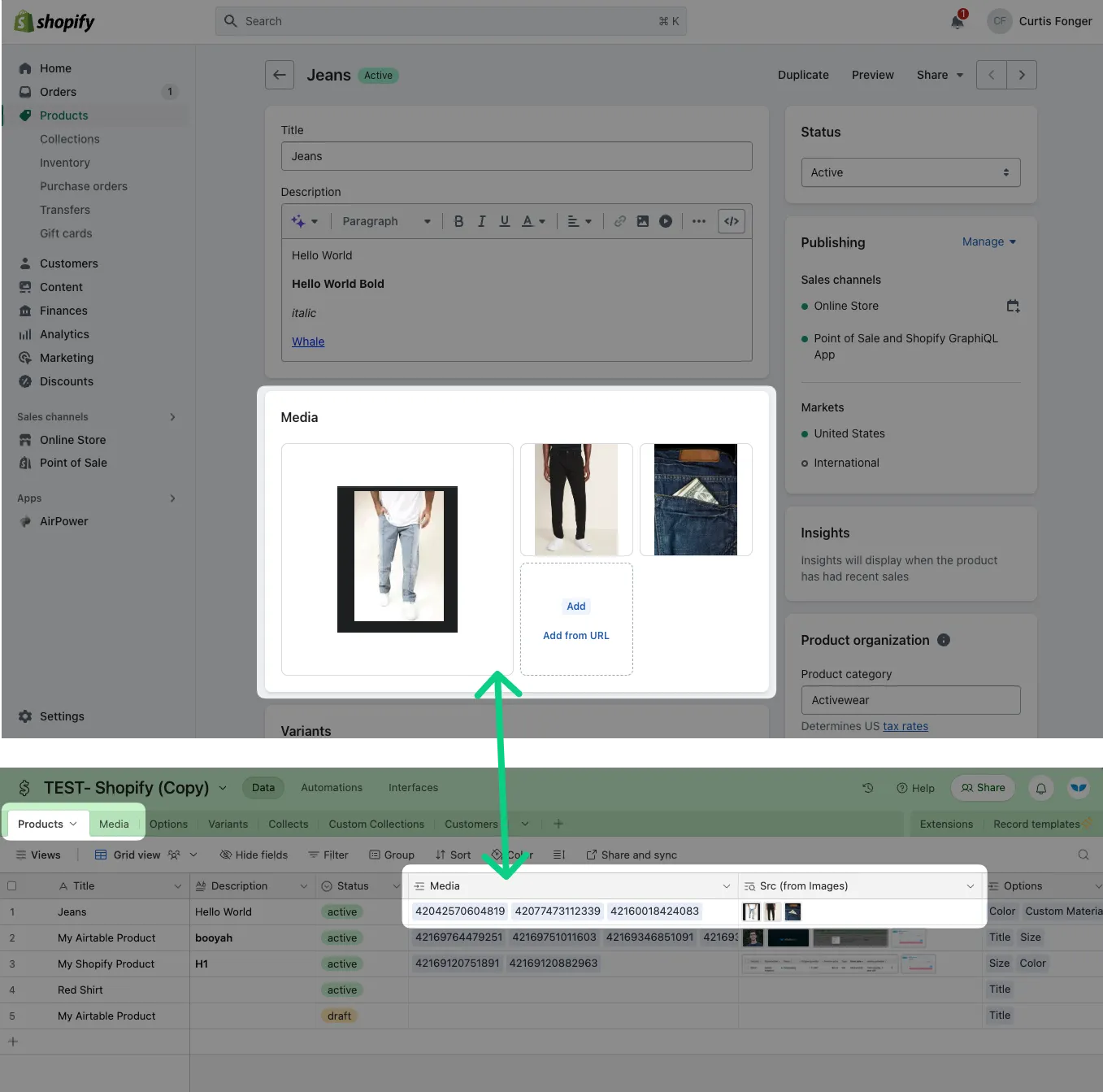
* In order to sync product images, you'll need to create a Media table that is separate from your Products table
* You can then link a Product to Media using a linked record (aka foreign key) field

**Detailed Explanation**

<figure><img src="https://2481481593-files.gitbook.io/~/files/v0/b/gitbook-x-prod.appspot.com/o/spaces%2FtLaMDbvbGOow76E8CnqW%2Fuploads%2FrOkWIIk8IOa5cuX6mX4W%2FShopify%20Media.png?alt=media&#x26;token=74dbf7c9-63f4-4d01-92bf-4276107daff4" alt=""><figcaption></figcaption></figure>

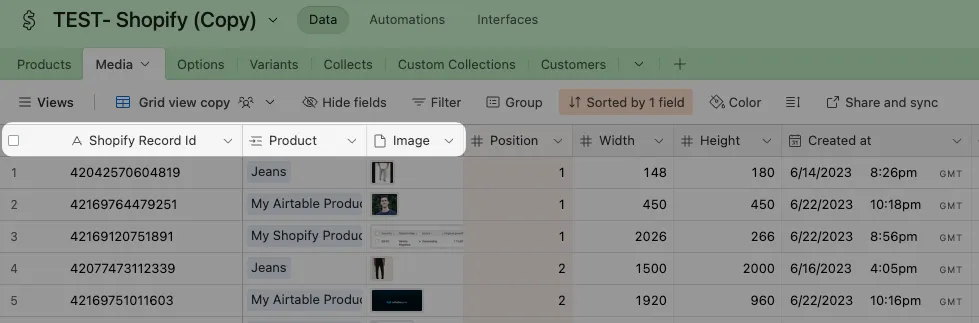
1. In Airtable (or your other connected app), create a table called "Media"
2. In the Media table, include at least two fields: 1) Shopify Product ID 2) Image
   <figure><img src="https://2481481593-files.gitbook.io/~/files/v0/b/gitbook-x-prod.appspot.com/o/spaces%2FtLaMDbvbGOow76E8CnqW%2Fuploads%2FAKR4jYCGFVBvW1Hdy3dg%2FCleanShot%202023-07-01%20at%2018.35.07.png?alt=media&#x26;token=1eceabae-772f-44de-b0f7-7e95556d6ca2" alt=""><figcaption></figcaption></figure>
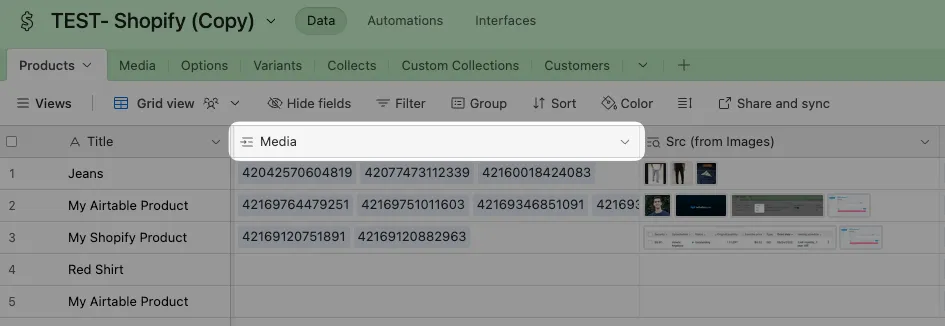
3. In the Products table, include a linked record from Product to Media
   <figure><img src="https://2481481593-files.gitbook.io/~/files/v0/b/gitbook-x-prod.appspot.com/o/spaces%2FtLaMDbvbGOow76E8CnqW%2Fuploads%2FG6ZLH2ITpRixjDN7Guch%2FCleanShot%202023-07-01%20at%2018.36.43.png?alt=media&#x26;token=e15f49b3-dad5-4ccd-aad2-47d5ae4f9398" alt=""><figcaption></figcaption></figure>